Interactive Point Field Widget
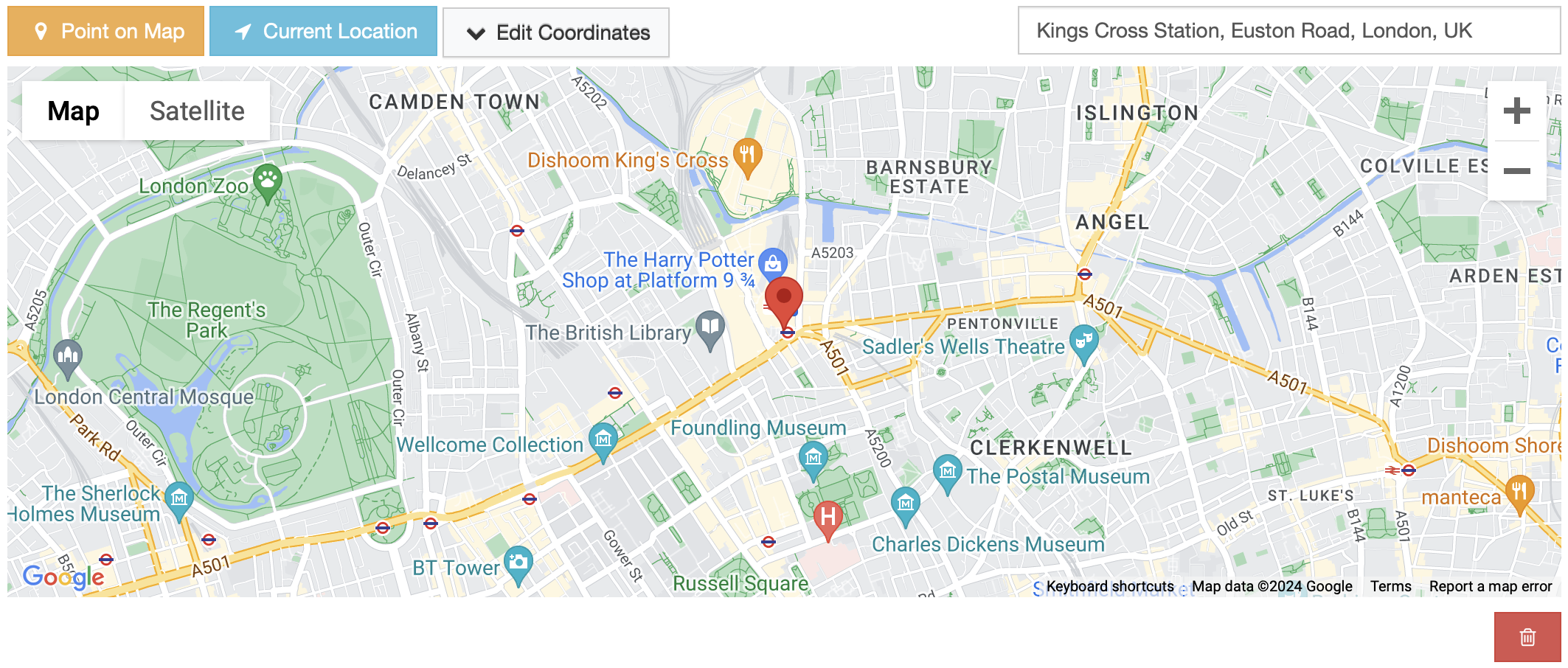
Preview
Requirements
To use this widget, you need to enable the following Google APIs in your Google application configuration:
Key Features
Place Autocomplete (Geocoding): The widget has a built-in Google Place Autocomplete input, allowing users to find and select places, addresses, or points of interest as they type in a search query.
Reverse Geocoding: The place autocomplete input will be populated with a plain address from positioned marker coordinates using the Google Geocoding API.
Dynamic Django Admin Inline Support: A new widget can be initialized when a new row is added in Django Admin inlines dynamically via Django Admin JS events. See the usage below.
Use My Location Action: Users can set their current location as a marker using the “Use My Location” action button.
Edit Coordinates Inputs: The marker coordinates (latitude, longitude) can be updated manually through the Coordinates dropdown pop-up inputs.
Draggable Markers: Positioned markers can be dragged across the map, and the coordinates inputs and geocoding data will be updated when the marker is dropped.
Add Marker by Click: A marker can be added to the map via mouse click.
Settings
Default Settings
MAP_WIDGETS = {
    "GoogleMap": {
        "apiKey": None,
        # https://maps.googleapis.com/maps/api/js?language={}&libraries={}&key={}&v={}"
        "CDNURLParams": {
            "language": "en",
            "libraries": "places,marker",
            "loading": "async",
            "v": "quarterly",
        },
        "PointField": {
            "interactive": {
                "mapOptions": {
                    "zoom": 12,
                    "scrollwheel": False,
                    "streetViewControl": True,
                    "center": get_default_center_coordinates(),
                },
                "GooglePlaceAutocompleteOptions": {},
                "mapCenterLocationName": None,
                "markerFitZoom": 14,
            },
        },
    }
}
apiKey: Google JavaScript API key. (required)
CDNURLParams: The Google JavaScript API library JS source URL parameters can be modified using this setting.
mapOptions: GoogleMap MapOptions parameters can be managed using this dictionary. These settings are passed as arguments to the GoogleMap JS initialization function. Default values are provided for zoom, scrollwheel, streetViewControl, and center.
mapCenterLocationName: A specific location name for the center of the map can be provided. The widget will use Place Autocomplete to find the coordinates for this location.
markerFitZoom: A custom zoom value is set programmatically after a marker is added with user geolocation or place autocomplete. This setting exists to enhance the user experience. The default value is 14.
Note
More details about map widget settings usage can be found in the settings guide.
Note
If no settings are provided for the map center (mapOptions.center or mapCenterLocationName), the map will automatically center based on the django project’s timezone setting. This feature ensures that the map displays an appropriate and relevant initial view.
For more details on timezone center coordinates, refer to the following resources:
Usage
In the Django project settings file, the MAP_WIDGETS dictionary should be defined to customize the default settings for map widgets.
MAP_WIDGETS = {
    "GoogleMap": {
        "apiKey": GOOGLE_MAP_API_KEY, # your google API
        "PointField": {
            "interactive": {
                "mapOptions": {
                    "zoom": 15  # default map initial zoom,
                    "scrollwheel": False,
                    "streetViewControl": True
                },
                "GooglePlaceAutocompleteOptions": {
                    "componentRestrictions": {"country": "uk"}
                },
                "mapCenterLocationName": "London"
            },
        },
    },
}
Django Admin
import mapwidgets

class CityAdmin(admin.ModelAdmin):
    list_display = ("name",)
    formfield_overrides = {
        models.PointField: {"widget": mapwidgets.GoogleMapPointFieldWidget}
    }
Django Forms
import mapwidgets

class CityAdminForm(forms.ModelForm):
    class Meta:
        model = City
        fields = ("coordinates", "city_hall")
        widgets = {
            'coordinates': mapwidgets.GoogleMapPointFieldWidget,
            'city_hall': mapwidgets.GoogleMapPointFieldWidget,
        }
Dynamic Django Admin Inline Support
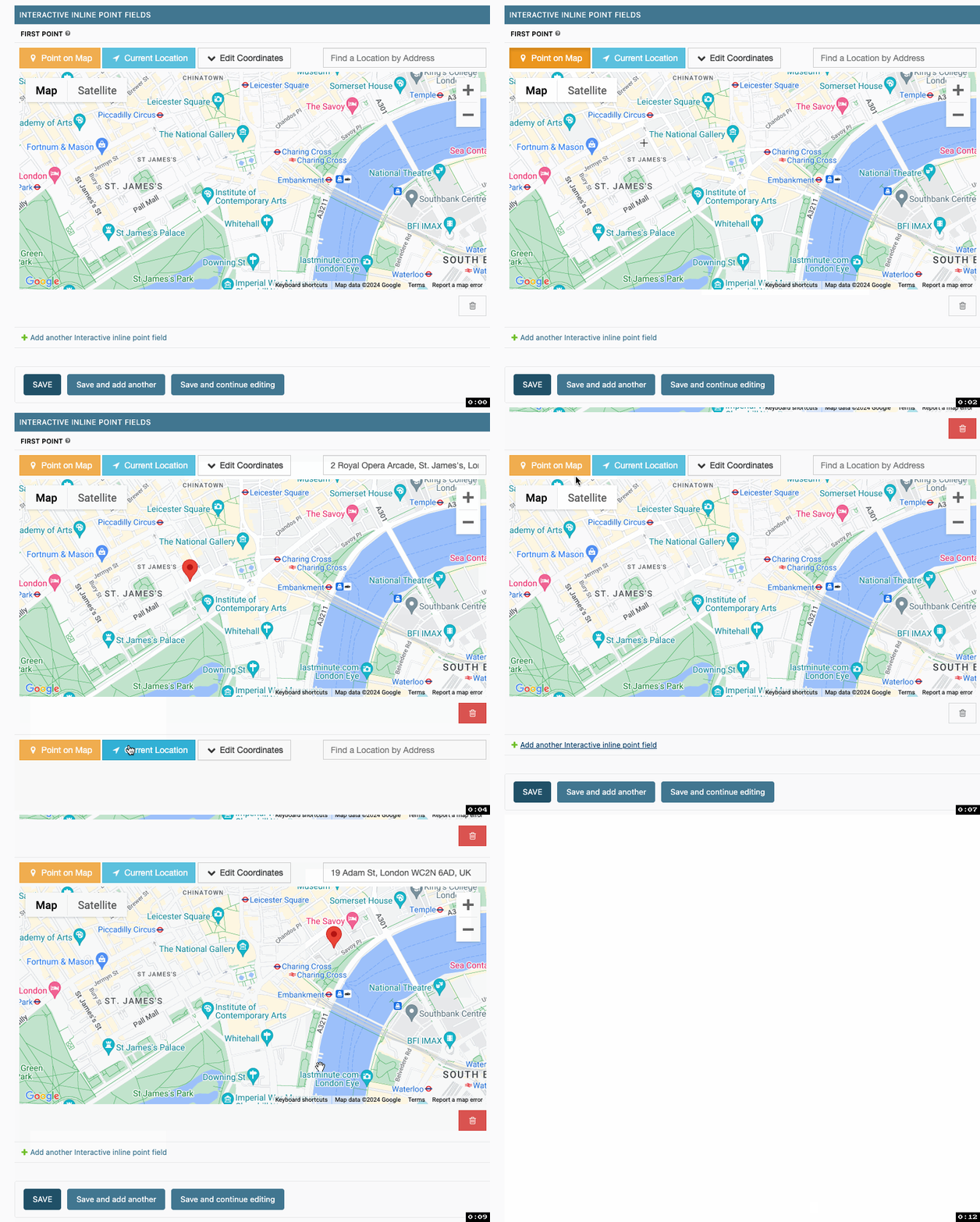
Django Admin includes an inline feature that allows the dynamic addition of inline rows. Normally, the GoogleMapPointFieldWidget cannot be initialized when add another row action button is clicked. However, this functionality can use with GoogleMapPointFieldInlineWidget class, which initializes a new GoogleMap interactive widget for new inline rows.
Usage
import mapwidgets

class DistrictAdminInline(admin.TabularInline):
    model = District
    extra = 3
    formfield_overrides = {
        models.PointField: {"widget": mapwidgets.GoogleMapPointFieldInlineWidget}
    }

class CityAdmin(admin.ModelAdmin):
    inlines = (DistrictAdminInline,)
Javascript Triggers
UI customization or event handling on the front-end can be managed using map widget jQuery triggers. Examples of usage can be found in the demo project.
googleMapPointFieldWidget:markerCreate: Triggered when a marker is created on the map. (callback params: place, lat, lng, locationInputElem, mapWrapID)
googleMapPointFieldWidget:markerChange: Triggered when a marker’s position is changed on the map. (callback params: place, lat, lng, locationInputElem, mapWrapID)
googleMapPointFieldWidget:markerDelete: Triggered when a marker is deleted from the map. (callback params: lat, lng, locationInputElem, mapWrapID)
googleMapPointFieldWidget:placeChanged: Triggered when the place in the autocomplete input is changed. (callback params: place, lat, lng, locationInputElem, mapWrapID)
(function ($) {
    $(document).on("googleMapPointFieldWidget:markerCreate", function (e, lat, lng, locationInputElem, mapWrapID) {
        console.log(locationInputElem); // Django widget textarea widget (hidden)
        console.log(lat, lng); // Created marker coordinates
        console.log(mapWrapID); // Map widget wrapper element ID
    });

    $(document).on("googleMapPointFieldWidget:markerChange", function (e, lat, lng, locationInputElem, mapWrapID) {
        console.log(locationInputElem); // Django widget textarea widget (hidden)
        console.log(lat, lng);  // Changed marker coordinates
        console.log(mapWrapID); // Map widget wrapper element ID
    });

    $(document).on("googleMapPointFieldWidget:markerDelete", function (e, lat, lng, locationInputElem, mapWrapID) {
        console.log(locationInputElem); // Django widget textarea widget (hidden)
        console.log(lat, lng);  // Deleted marker coordinates
        console.log(mapWrapID); // Map widget wrapper element ID
    });

    $(document).on("googleMapPointFieldWidget:placeChanged", function (e, place, lat, lng, locationInputElem, mapWrapID) {
        console.log(place); // Google geocoder place object
        console.log(locationInputElem); // Django widget textarea widget (hidden)
        console.log(lat, lng); // Created marker coordinates
        console.log(mapWrapID); // Map widget wrapper element ID
    });
    console.log($("#location-map-elem").data("mwMapObj")); // GoogleMap JS object
    console.log($("#location-map-elem").data("mwClassObj")); // The widget class instance object
})(jQuery)